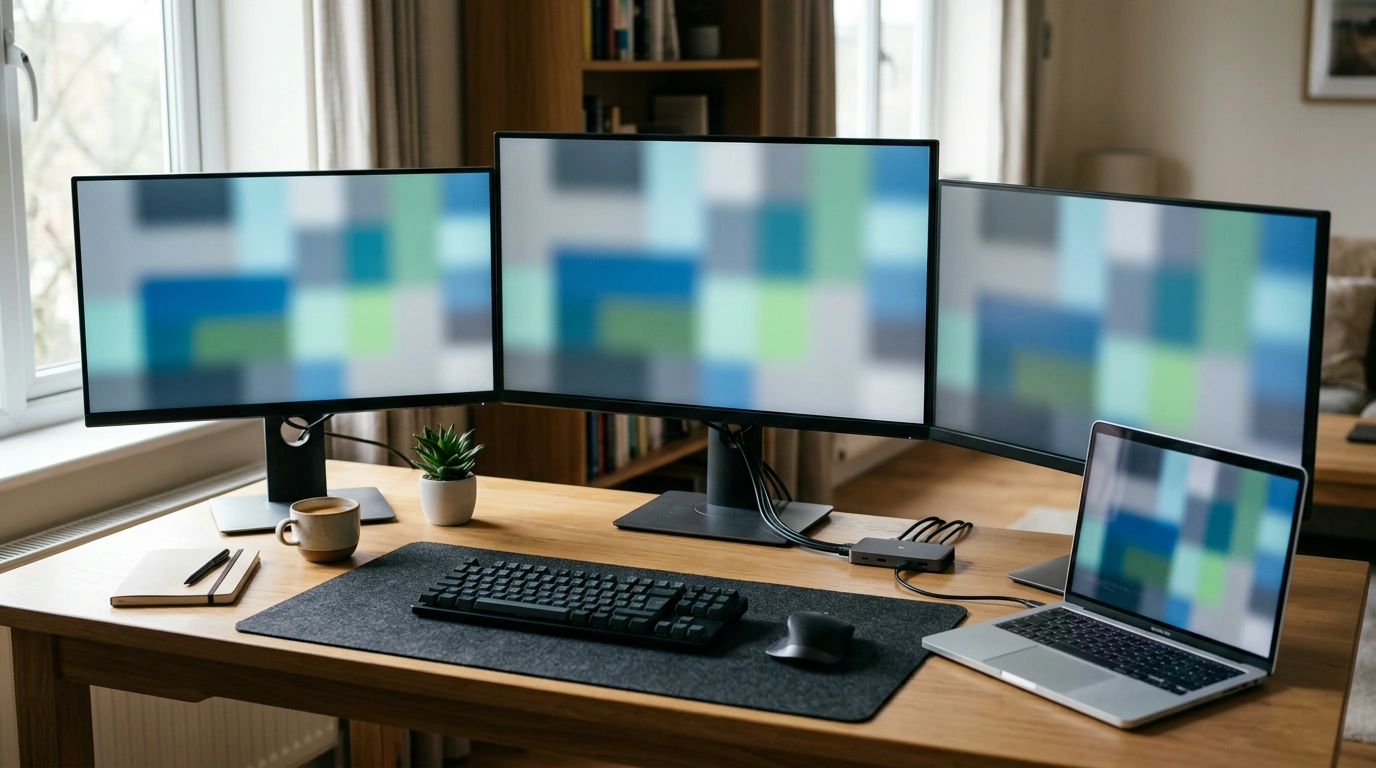
A three-monitor desk can give you a main screen for focused work, a second for reference material, and a third for messages or previews. The goal is not simply to add screens; it is to make everyday work easier to follow without covering your desk in loose cables. A USB-C dock can provide a central connection point for your displays and accessories, but the laptop determines much of what the finished setup can do.
Before choosing cables, decide what belongs on each screen. You might keep a document or project in front of you, place research on one side, and leave a meeting window or inbox on the other. If you frequently share your screen, consider which display you will present and where you want private notes to stay. Small choices like these help you position monitors at comfortable viewing angles before you route any cables.
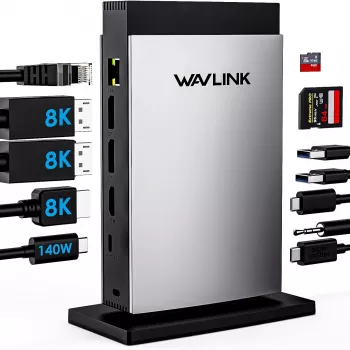
Our Laptop Docking Station for 3 Monitors – 11-in-1 USB C Hub with 140W PD Charging is an option for bringing a laptop’s desk connections together. A dock can reduce the number of individual connections you handle each time you sit down or pack up. Its name, however, is not a promise that every laptop will run three external monitors. Confirm your computer’s display capabilities before planning around all three screens.
Start with the exact laptop model, not just its brand or the shape of its port. A USB-C connector does not, by itself, establish that the port carries video or supports charging. Your laptop’s specifications should identify its external-display limit and the capabilities of the port you intend to use. If you use a work laptop, your IT team may also have guidance on supported docks and display configurations.
Next, compare the video inputs on each monitor with the dock’s listed outputs. Note which cables you already own and whether any adapter is required. The number of displays you can use—and their available resolutions and refresh rates—can vary with the laptop, operating system, connection method, and dock. Confirm the combination you want rather than assuming that three connected screens will all operate at your preferred settings.
| Check | What to confirm | Why it matters |
|---|---|---|
| Laptop video support | USB-C video capability and supported external-display count | Determines whether your planned monitor layout can work |
| Monitor connections | Inputs on each monitor and outputs listed for the dock | Helps identify cables or adapters you may need |
| Power needs | Laptop charging requirements and the dock’s stated power arrangement | Helps determine whether the setup can charge your laptop as intended |
| Accessories | Ports needed for everyday peripherals | Helps you prioritize the connections you use most |
If you already own the monitors, write down each model number while checking its inputs. If you are buying displays as well as a dock, settle on a connection plan before ordering all the parts. That extra step can prevent a desk full of hardware that needs one more cable—or a laptop that cannot support the intended layout.
USB Power Delivery, or USB PD, is a charging standard through which compatible devices negotiate available power. The USB Implementers Forum’s USB Power Delivery information provides background on the standard. Our dock’s 140W PD charging claim does not mean every connected laptop will receive 140W. Actual charging depends on the laptop’s USB-C charging support, its power requirements, the cable, the power source, and the dock’s supported power delivery arrangement.
Look up the wattage your laptop requires, then compare it with the dock’s current power details. Check whether your intended cable supports the needed charging level. If your laptop has higher power needs or does not charge through the USB-C port you plan to use, account for its usual charger in your desk layout. Treat charging and external-display support as separate checks: a port that handles one function is not automatically suitable for the other.
“11-in-1” is most useful when the available connections match what you actually plug in. Make a short list of your daily accessories: perhaps a keyboard, mouse, storage device, headset, or other work equipment. Compare that list with the dock’s confirmed port details, including any ports you need at the same time. Keep frequently swapped devices easy to reach; route cables for equipment that stays connected toward the back of the desk.
Place the monitors first, leaving room to open your laptop and reach anything you use regularly. Then test your connections before securing cables. A little slack makes it easier to move a screen or unplug the laptop without pulling on a connector. Once the arrangement works, bundle only the cables that can share a route without making future changes difficult.
If you also want a separate power option for work away from a wall outlet, our Portable 200W Solar Generator with AC Outlet & USB Ports is another product to consider for that distinct need. Compare its output and your equipment’s requirements independently; it should not be assumed to power a complete multi-monitor desk.
No. Your laptop must support the intended number of external displays, and its USB-C connection must meet the dock’s video requirements. Check your exact laptop model before building a three-monitor setup.
No. Actual charging power depends on your laptop, cable, power source, and the dock’s supported power delivery. Compare those specifications with your laptop’s charging requirements.



Leave a comment