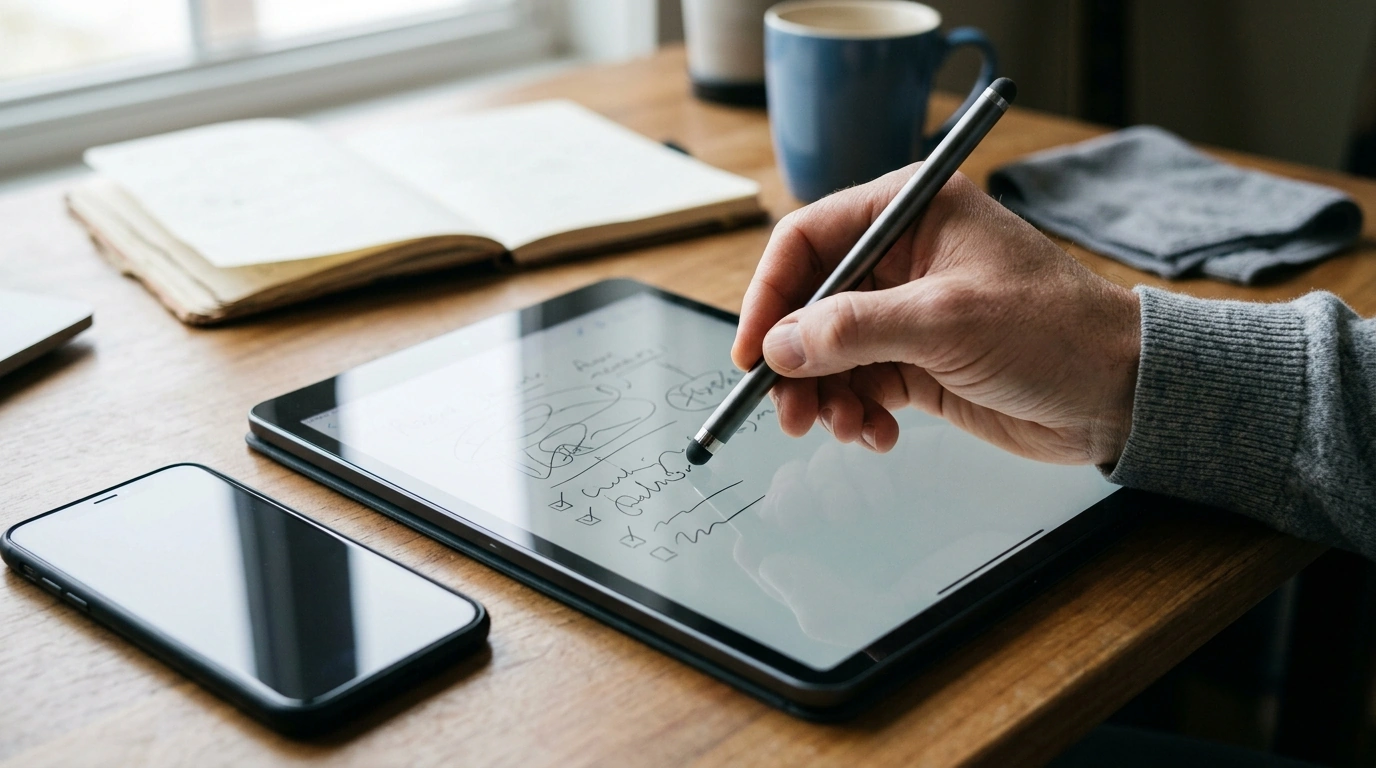
A universal stylus can make everyday screen tasks feel more precise—whether it’s jotting quick notes, scrolling with better control, or sketching ideas on the go. Unlike device-specific pens, a universal stylus is designed to behave like a fingertip on a capacitive touchscreen, helping you tap smaller interface elements and write more neatly without constant smudges. Below is what to expect from a universal stylus pen, how it works across iPad, iPhone, and other tablets, and which practical features matter most for comfort and accuracy.
A universal stylus is built to work with most modern touchscreens by mimicking the electrical properties of a finger. That typically means no pairing steps, no charging requirements, and no device-specific setup.
If your main goal is cleaner taps, steadier scrolling, or quick handwritten notes, a universal stylus usually delivers a simple, dependable experience. For specialized creative work, an active stylus may still be the better match.
Most iPads and iPhones use capacitive touchscreens, which is why universal styluses work well for basic input wherever a finger would work—tapping buttons, swiping between screens, selecting text handles, and sketching simple lines.
| Device/Use | Expected Result | Notes |
|---|---|---|
| iPad (Pro/Air/Mini) basic navigation | Works | Tap, scroll, select, and swipe like a fingertip |
| iPhone messaging and browsing | Works | Helpful for precision taps and small UI elements |
| Note-taking (basic handwriting) | Works | Line quality depends on the app and screen protector |
| Professional illustration features (pressure/tilt) | Limited | Requires an active stylus and compatible device/app |
| Gloves/palm on screen | Varies | Palm rejection is typically not available with universal stylus types |
For Apple users, tools like Markup are a great example of where a universal stylus can feel immediately useful for quick edits and annotations. Apple’s guide to Markup explains what’s possible within built-in workflows: Apple Support: Use Markup on iPhone, iPad, or iPod touch. If you’re mainly navigating with gestures, it can also help to know which touch actions your device expects: Apple Support: About iPad gestures.
Universal styluses shine in everyday moments when fingers feel too “big” or when you want cleaner contact on the glass.
If you routinely tap small UI elements—tiny “X” buttons, calendar time slots, spreadsheet cells, or trim handles in photo editors—a stylus can reduce mis-taps and speed things up.
Even a simple stylus can feel dramatically different depending on tip style and how it sits in your hand. Comfort matters most when you’re writing longer notes, practicing handwriting, or doing slow, controlled strokes.
Yes. A universal stylus uses capacitive touch input to act like a fingertip, so basic tapping, swiping, and simple writing typically work without Bluetooth pairing. Bluetooth-based active pens are different because they enable features like pressure sensitivity and palm rejection on compatible devices and apps.
It can handle casual sketching and simple lines, but it generally won’t replace an active pen for advanced art. Universal styluses typically lack pressure sensitivity, tilt support, and reliable palm rejection, which many professional drawing workflows depend on.
Skipping is often caused by a dirty screen, a slick or textured screen protector, or an angle/pressure that doesn’t keep consistent contact with the glass. Cleaning the screen, slightly increasing pressure, and using a thicker stroke setting in your note app can improve consistency.





Leave a comment