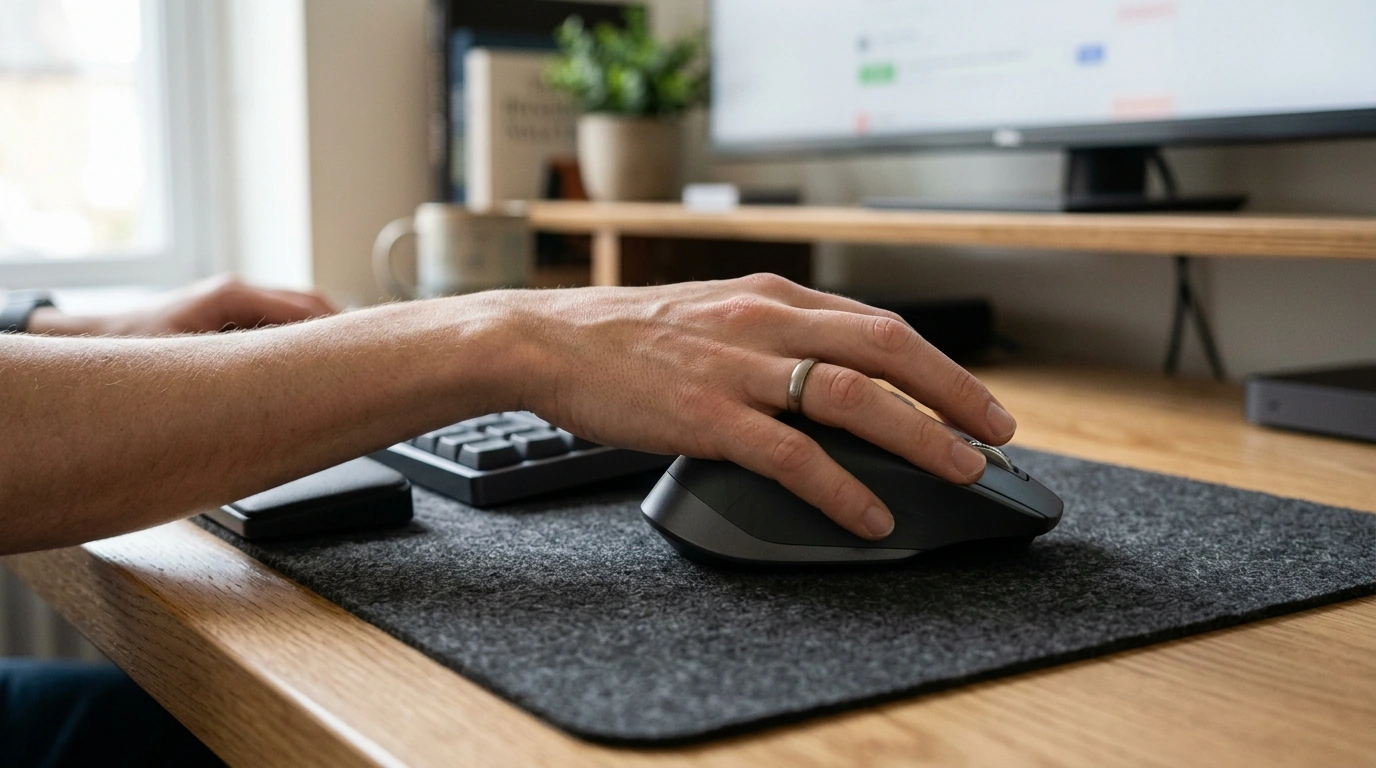
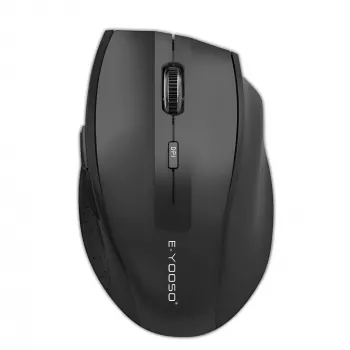
A mouse you use all day should feel natural in your hand, track consistently, and let you change pace fast when your task changes. Our Wireless Ergonomic Gaming & Office Mouse 2.4G with Adjustable 2400 DPI is built for a clean, cable-free setup and quick sensitivity changes—so you can go from careful spreadsheet work to faster movement on a large display without fighting your cursor.
If your day includes a mix of email, documents, browsing, and some casual gaming, having one mouse that can flex with you keeps the desk simpler and your workflow smoother.
In practical terms, this is about fewer distractions: less cable drag, fewer micro-adjustments, and a mouse that can “shift gears” when you move from precise clicks to rapid navigation.
DPI (dots per inch) controls how far your pointer moves on-screen relative to your hand movement. Lower DPI gives you slower, steadier motion; higher DPI covers more screen with less wrist travel. The goal isn’t to pick one number forever—it’s to change DPI like a gear shift based on what you’re doing.
| Task | Suggested feel | DPI direction |
|---|---|---|
| Text selection, spreadsheets, precise clicking | Steady and controlled | Lower |
| Email, web browsing, mixed office work | Balanced | Middle |
| Large screens, multiple monitors, faster navigation | Quick movement with fewer swipes | Higher (up to 2400) |
| Casual gaming and general play | Responsive without overshoot | Middle-to-higher (adjust to preference) |
If you notice over-shooting buttons or cells, step down a level. If you find yourself “scrubbing” the mouse across the desk to cross a big display, step up. Pair your DPI choice with your system pointer speed so the cursor feels predictable, not twitchy.
Ergonomics isn’t about perfection—it’s about reducing small strains that add up across hours. An ergonomic mouse shape can help, but it works best with a few simple habits:
Our team also recommends placing the mouse close to your keyboard so your shoulder stays relaxed. For general workstation guidance, OSHA’s computer workstation resources are a solid reference, and NIOSH provides practical context on ergonomics and musculoskeletal strain.
OSHA – Computer Workstations eTool (Ergonomics)
NIOSH – Ergonomics and Musculoskeletal Disorders
2.4G wireless is designed to feel straightforward: plug in the receiver and go. A few placement tweaks can make it even more consistent.
When your pointer movement feels steady, your hand naturally relaxes—because you’re not constantly correcting or re-aiming.
If your days feel mentally crowded as well as physically cluttered, pairing a cleaner workspace with a simple routine can help. Our team created Calm at Work: Smart Strategies to Manage Stress and Boost Focus as a practical, structured guide you can use to keep sessions intentional—especially when deadlines, messaging, and multitasking pull you in five directions.
For a simple, flexible mouse that supports both steady office control and faster navigation, start with our Wireless Ergonomic Gaming & Office Mouse 2.4G with Adjustable 2400 DPI and plan to use DPI actively instead of forcing one speed for everything.
Lower DPI can feel steadier for precise tasks like selecting text and clicking small spreadsheet cells, while mid-range DPI usually fits general office navigation. Higher DPI helps you move across large or multiple monitors with fewer hand movements, as long as you’re not overshooting targets.
Yes—2.4G wireless can work well for casual and everyday gaming, especially when the receiver is placed for a stable connection and you’re using a consistent surface. Sensitivity preferences vary by game, so adjusting DPI until it feels responsive without losing control is key.
Keep a neutral wrist, use a relaxed grip, and position the mouse close to the keyboard so your arm isn’t reaching outward. A supportive chair/desk height plus short breaks to stretch your fingers and shoulders can also reduce fatigue over long sessions.




Leave a comment